
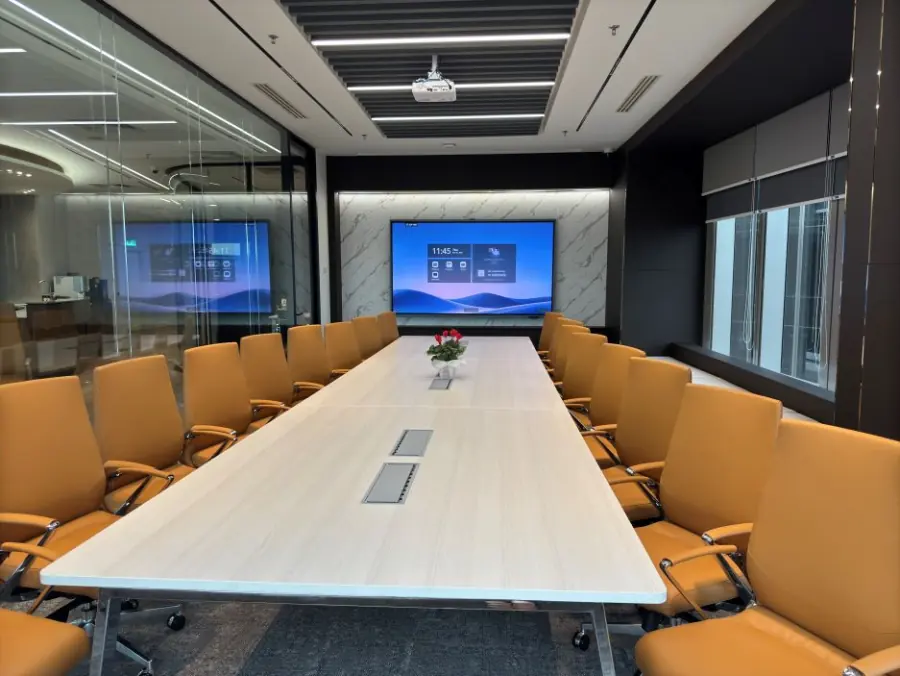
Hybrid Meeting Room Setup: Clear Sound and Video
A hybrid meeting room setup needs a camera that shows everyone, microphones that capture every seat, speakers for remote voices and a screen everyone can read. Connect these through the meeting platform, then test the complete call with someone outside the room. We recommend checking what remote guests actually receive before your meeting begins.
Position the camera around your seating plan
Start with the chairs occupied and open the camera preview. Check whether guests at the edges remain visible and whether people at the far end are recognisable. A wide view can include the whole table while making individual faces difficult to see.
Position the camera near the display showing remote participants, as close to seated eye level as the room allows. This helps people look towards their remote colleagues during conversation. Microsoft’s meeting room guidance recommends matching camera coverage to the room and seating arrangement.
For a presentation, test where the speaker will stand and move. If the camera has speaker tracking, watch what happens when someone at the table asks a question. Agree on a standing area that stays within the tested camera view, and repeat the check after changing the furniture.
Give every seat clear audio in both directions
Select the room microphone and speakers in the meeting app before guests arrive. Ask someone outside the room to listen while people speak naturally from different seats. Then have that remote guest speak, and check that everyone in the room can hear comfortably.
Keep tabletop microphones clear of objects that could obstruct them. A microphone near the presenter still needs to capture questions from elsewhere, so include the audience area in your check. Yealink’s setup guidance recommends testing pickup from different seating positions.
Use the room system as the active audio connection. If other guests join on laptops for chat or sharing, disconnect their meeting audio rather than only muting their microphones. Their speakers can still feed sound back into the room.
If an echo starts, check those additional devices before changing the room settings. Excessive speaker volume can also contribute, according to Zoom’s echo troubleshooting guidance. Keep the volume comfortable and repeat the remote listening test after making adjustments.
Make screens and shared content work for both audiences
Check the presentation from the furthest occupied seat. Use the actual document you plan to discuss, especially if it contains spreadsheet cells or detailed diagrams. A title slide alone gives you little evidence that the working material is readable.
Share the document through the meeting platform and ask the remote guest to confirm receipt. Showing a presentation on the room display does not establish what is being shared into the call. Check any whiteboard annotations from the remote side as well.
For video clips, test the soundtrack separately. In Zoom, enable Share sound when sharing content with audio, and check that the host has allowed the intended presenter to share. These controls are described in Zoom’s screen-sharing guidance.
Where the room and platform support separate views, keep remote faces visible alongside the presentation. For the wider venue checklist, our Hybrid Meeting Room KL guide is a useful companion to these setup checks.
Check Wi-Fi quality through the actual meeting
Test the connection on the device that will run the call, from its intended position. Join the chosen platform with video enabled and share the actual presentation. This gives you a more useful rehearsal than checking a download speed alone.
As a reference, Zoom recommends 3.8Mbps upload and 3.0Mbps download for group video at 1080p. Those figures describe that calling mode, rather than the total capacity needed by everyone using a venue network. Other meeting platforms and layouts have different requirements, so check the relevant platform requirements.
Listen for broken speech and watch for freezing while content is shared. Microsoft’s call-quality guidance identifies packet loss and inconsistent packet arrival times as relevant network measures. If the rehearsal struggles, ask the technical team to investigate the connection and check whether a wired option is available.
Rehearse the complete meeting before guests arrive
Use the host’s actual laptop and account for the rehearsal. Open the meeting link and confirm the selected camera, microphone and speaker devices. Follow any prompts for permissions before testing the presentation handover.
For Zoom users, a test meeting helps check equipment and become familiar with the controls. Follow that with a rehearsal involving someone outside the room, so you can confirm what they see and hear. Ask them to read shared content and respond to questions from different seats.
Rehearse a change of presenter as well. Confirm who controls screen sharing and who will help if the next speaker cannot present. Keep the tested connection arrangement ready throughout the session.
We suggest giving someone responsibility for watching remote participants during the meeting. They can draw the chairperson’s attention to a raised hand or a message about missing sound. Include an audience question in the rehearsal so that this part of the discussion receives the same attention as the presentation.
How Maxsmart Event Space fits your hybrid meeting
Maxsmart Event Space is at Level 13, Corporate Tower 2, Pavilion Damansara Heights, Kuala Lumpur. Choose the room around your in-person attendance and discussion format.
| Room | Capacity | Standard hourly rate | Half day, 4 hours | Full day, 8 hours |
|---|---|---|---|---|
| Nexus Executive Boardroom | Up to 18 | RM300 | RM1,200 | RM1,800 |
| Synergy Suite | Up to 72 in theatre style | RM600 | RM2,300 | RM3,600 |
Nexus has a 98-inch interactive display, a speaker-tracking 4K camera and immersive 360° audio. Synergy Suite has an LED wall with supporting displays, a smart lectern and a professional PA system.
Both include 1Gbps Wi-Fi, an on-site tech assistant, USB-C and wireless screen sharing, plus support for Teams, Zoom, Google Meet and Webex. Standard rates include SST, with a two-hour minimum; weekend and public holiday fees apply. These details follow our live venue page.
Our meeting room inclusions and booking guide provides related planning information. Include your presenter arrangement in the rehearsal so the setup reflects how you intend to use the room.
Frequently asked questions
What equipment do you need for a hybrid meeting room?
You need camera coverage for the people in the room, suitable microphones and speakers, a readable display and an internet-connected device running the meeting platform. Test content sharing as part of the same setup so remote guests can follow the discussion.
Where should the camera go in a hybrid meeting room?
Place it near the display showing remote participants, as close to seated eye level as practical. Check the remote view with the seats occupied, including people at the edges and the far end.
How do you stop echo in a hybrid meeting?
Keep the room system as the active audio connection and disconnect meeting audio on other devices in the room. If echo continues, check speaker volume and follow the platform’s audio troubleshooting guidance.
How much internet speed does a hybrid meeting need?
Requirements depend on the platform and calling mode; Zoom recommends 3.8Mbps upload and 3.0Mbps download for group video at 1080p. Test the actual call with screen sharing because available bandwidth and connection stability both matter.
Can you run a hybrid meeting from a laptop?
Yes, a laptop can run the meeting platform with connected room equipment. Select and test the intended camera, microphone and speakers in the app, then confirm the result with someone joining remotely.
When your date and attendance are ready, check availability and book at Maxsmart Event Space. You can select the room and booking length for your meeting.