
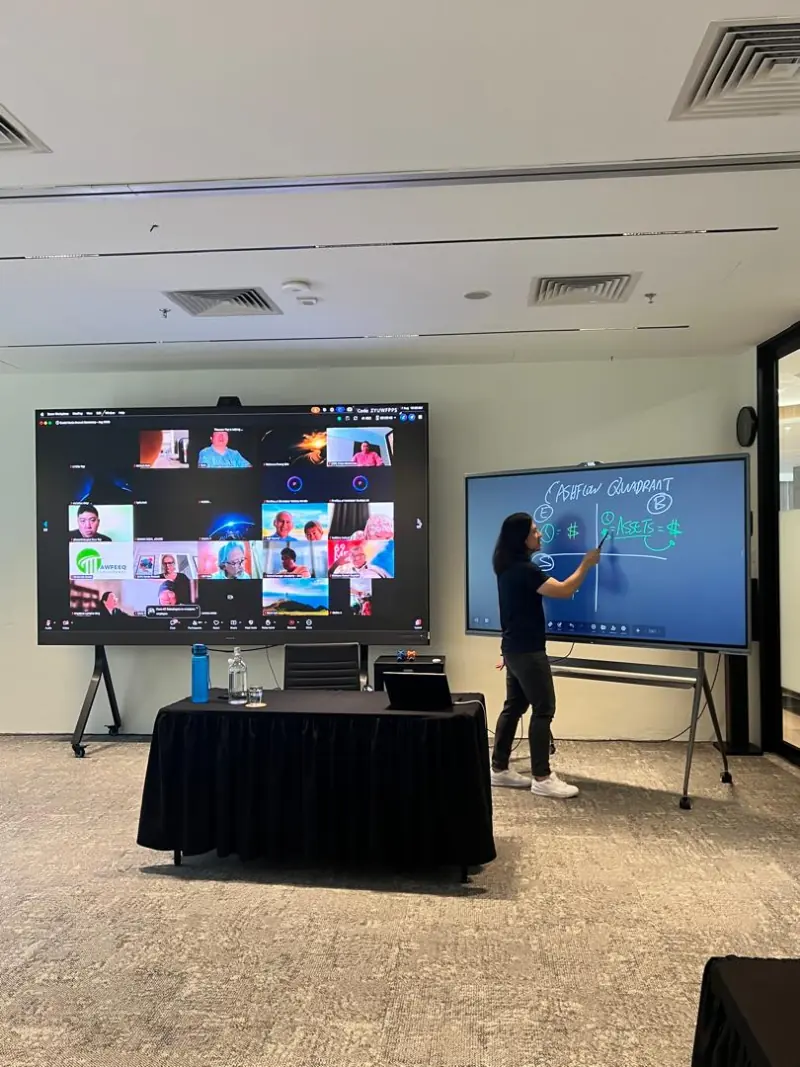
Live Streaming Event Setup: A Rented Venue Guide
A reliable live streaming event setup connects your microphones and cameras to a streaming computer or hardware encoder, then sends the programme to your chosen platform. At a rented venue, confirm the available connections and technical support before booking, and rehearse the complete broadcast from the room you’ll use.
Decide what your remote audience needs
Start with how people will participate. An audience watching a presentation needs a different arrangement from remote speakers who must hear the room and join the conversation.
For a broadcast, decide where viewers will watch and how they’ll submit questions. For an interactive event, map how remote contributions will reach the room, who will introduce them and what the presenter needs to see.
Check the platform’s access settings and recording options before invitations go out. Include captions in your planning, and test the joining process from an attendee’s account. These decisions shape the technical setup and the experience you can offer, as Vimeo’s virtual event planning guide explains.
For a conference programme with speaker handovers, our conference livestream planning guide provides related venue planning advice.
Map the equipment and venue connections
Think of the setup as a connected path. Video and audio enter the production system, the encoder prepares them for transmission, and the platform delivers the result to viewers. This is the basic workflow described in Vimeo’s live streaming guide.
Use the table below as a planning checklist. Confirm each connection with the venue rather than assuming that equipment already in the room will connect directly to your laptop.
| Part of the setup | Its purpose | What to confirm |
|---|---|---|
| Camera | Captures the presenter | Available output and compatibility with your production system |
| Microphones and audio interface | Bring speech into the stream | Which room audio feed is available and how it connects |
| Presentation source | Supplies slides and video | How content reaches both the room display and the stream |
| Streaming computer or encoder | Combines and transmits the programme | Supported inputs, platform compatibility and power supply |
| Monitoring device | Checks the audience experience | Access to the actual viewing page and headphones |
Put responsibility beside each item in your equipment plan. Your hybrid meeting equipment checklist can sit alongside this list when remote participants will speak.
Prepare clear sound and readable pictures
Check the outgoing audio
Choose the microphone or room audio feed deliberately in your streaming software. In OBS, the audio meters help you check whether the selected inputs are receiving sound; its Quick Start Guide also explains how to select devices manually.
Check every source that will be heard, including presentation videos and audience questions. Listen through the viewing page during rehearsal, so you assess what remote guests receive as well as what sounds clear inside the room.
If remote speakers join, ask the technician to check their return audio. A mix-minus arrangement lets a remote guest hear the programme without receiving their own voice back, helping prevent echo, as LiveU’s mix-minus guidance explains.
Prepare the programme views
Create separate views for the presenter and slides, plus any combined view your programme needs. OBS supports scenes containing different sources and a preview workflow for preparing changes before sending them live, described in its Studio Overview Guide.
During rehearsal, review the presenter’s framing and check slide readability on the audience’s viewing device. Include the actual presentation content so you can spot problems before guests arrive.
Test upload capacity and encoder settings
Ask whether a wired connection can be provided at the production position. Vimeo recommends a dedicated wired connection for business broadcasts and explains that upload speed affects the streaming quality you can support in its live streaming tips.
Treat an advertised internet speed as a starting point for questions. Ask the venue to confirm the upload capacity available to your production system, whether the connection is shared and whether your platform can be reached through the venue network.
Choose the stream’s resolution, frame rate and bitrate against the platform’s current requirements and your tested connection. There is no universal setting that suits every venue or event.
YouTube’s encoder guidance recommends testing upload speed, rehearsing with representative audio and movement, and monitoring stream health during the event. Apply that approach using the equipment and connection you intend to use on the day.
Rehearse the programme and agree on recovery steps
Book enough room access for setup and rehearsal as well as the event itself. Confirm the permitted arrival time before finalising the production schedule, particularly when an external crew is bringing equipment.
Give presenters and technicians a shared run sheet. Include the opening cue, presentation changes, remote speaker handovers and the moment the broadcast ends. Assign someone to monitor online questions while the production operator watches the outgoing programme.
Run through the content with the actual laptops and microphones. OBS recommends a test stream or recording before broadcasting; replay it and check whether the intended sources were captured correctly. A successful software preview alone does not complete the rehearsal.
Agree on recovery steps with your team. Decide who investigates a connection failure, what the audience sees during a pause and whether the event continues locally while the stream is restored. Test any backup connection rather than leaving it untried until it is needed.
Vimeo’s virtual event guidance recommends preparing backup equipment and internet access alongside the rehearsal. Confirm where the recording will be saved and who will check it after the session, especially if your team needs a replay.
How Maxsmart Event Space fits your setup
We’re at Level 13, Corporate Tower 2, Pavilion Damansara Heights, Kuala Lumpur. Nexus Executive Boardroom seats up to 18; Synergy Suite accommodates up to 72 in theatre seating or 36 in classroom seating.
Nexus costs RM300 per hour, RM1,200 for a half day or RM1,800 for a full day. Synergy Suite costs RM600 per hour, RM2,300 for a half day or RM3,600 for a full day. The minimum booking is 2 hours, and prices include SST.
Every booking includes MAXHUB screens, 1Gbps Wi-Fi and an on-site tech assistant. Synergy Suite also lists a PA system, smart lectern and live streaming, broadcast and recording. Confirm your platform, camera arrangement, recording requirements and production responsibilities before finalising the setup. These facilities and rates appear on our live booking page.
For a company’s first room booking, FIRST50 gives 50% off the room rate when booked by 30/11/2026 for a meeting by 31/12/2026. Weekend and public holiday fees remain payable at the usual rate.
Frequently asked questions
What equipment do I need to live stream an event?
You need a camera, microphone, streaming computer or hardware encoder, an internet connection and a viewing platform. Depending on the equipment’s outputs, you may also need a capture device or audio interface.
What internet speed do I need for live streaming?
The requirement depends on your platform, resolution, frame rate and encoding settings. Test sustained upload capacity at the venue and follow your platform’s current guidance before choosing the output settings.
Can I live stream an event using venue Wi-Fi?
It may work, but you should test the connection with your actual production setup. A dedicated wired connection is preferable where available, and any backup connection should be tested before the event.
Do I need a capture card to live stream?
That depends on how the camera connects to your streaming system. A compatible USB camera may connect directly, while a camera supplying HDMI video may require a suitable capture device.
How do I stop remote speakers hearing an echo?
Have the technician check the audio being returned to each remote speaker. A mix-minus feed excludes that speaker’s own incoming voice from their return audio; rehearse the arrangement before going live.
To check availability and book your room, visit maxsmart.com.my.