
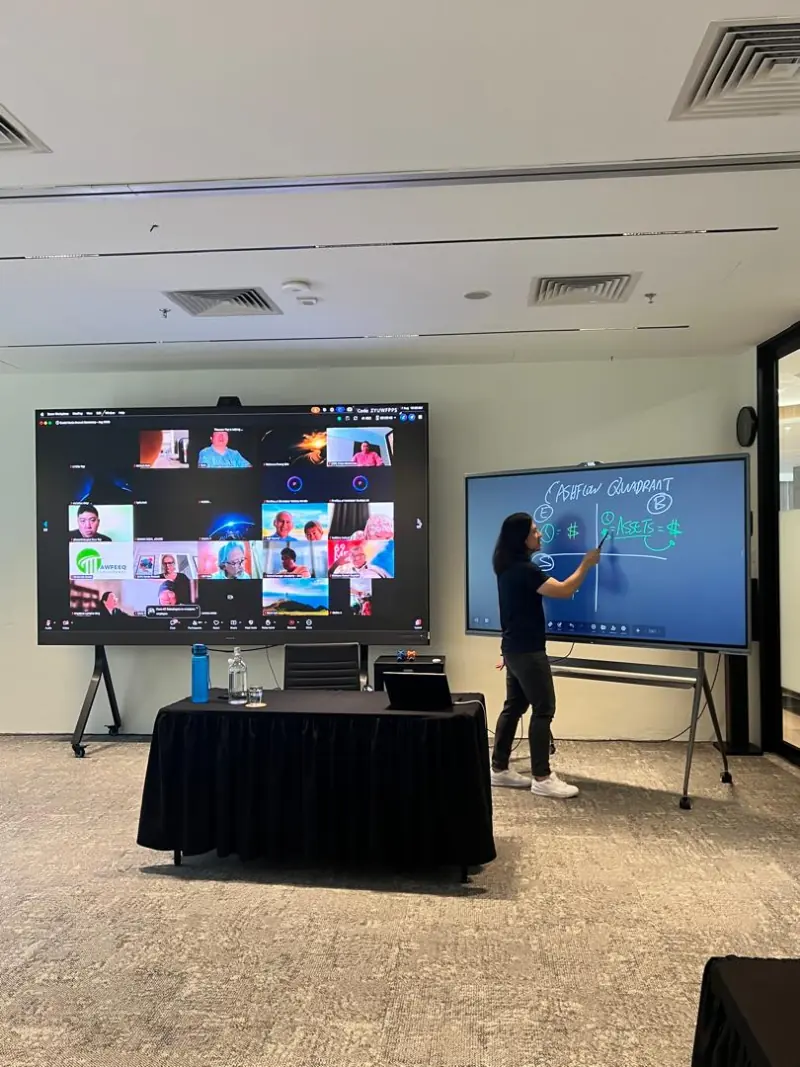
How to Set Up a Video Conference Room That Works
To set up a video conference room, arrange the seating around a readable display, position the camera to show everyone, and provide microphone coverage across the table. Connect the equipment to your meeting platform and a stable network, then test a complete call with someone joining remotely.
Start with the layout and joining method
Before connecting equipment, decide where people will sit and how the host will start the meeting. A discussion around a boardroom table needs different camera coverage from a presentation where the speaker moves around the front.
Choose whether the host will use a laptop connected to the room equipment or a dedicated meeting room system. For a rented venue, establish this before arrival so you can prepare the correct laptop and connections.
| Setup approach | How the meeting starts | What to confirm |
|---|---|---|
| Host laptop connected to room equipment | The host opens the meeting application and selects the room devices | The laptop recognises the camera, microphone and speakers |
| Dedicated room system | The host joins through the room interface | The invitation, account and meeting platform work with the system |
Write down the intended connection sequence and keep it beside the host position. Our hybrid meeting room equipment guide is a useful companion when preparing your equipment checklist.
Set the display for the person furthest away
Judge the display from the furthest occupied seat, using the material you will actually present. Open a typical slide or spreadsheet and check whether the content remains readable when the meeting interface is also visible.
Position the screen where everyone can look towards it comfortably. A large screen still needs a suitable layout: avoid seating guests where another person blocks their view or where they must keep turning away from the discussion.
If you plan to use separate screens for participants and shared content, confirm that the room system supports that arrangement. Microsoft's meeting room guidance describes supported display configurations and stresses content visibility from every seat.
Test the sharing connection with the presenter's laptop before guests arrive. Include any adapters in that check, and confirm that remote attendees receive the shared content as well as the people in the room.
Position the camera and check the lighting
Place the camera near the main display, facing the occupied seating area. Use seated eye level as a reference, then check the preview for an angle that shows faces naturally without cutting off people at the edges.
Seat someone at each end of the table during the check. For a presentation, include the position where the speaker will stand and any movement you expect during the session.
Check lighting with the blinds and room lights in their meeting positions. Bright windows behind participants can make faces difficult to see, so adjust the seating or blinds before relying on camera settings. These placement principles follow camera setup guidance.
If automatic framing or speaker tracking is available, try it with the planned layout. Ask your remote tester whether the resulting view helps them follow the discussion, and adjust it if necessary.
Check microphone coverage and prevent echo
Have a remote colleague listen while people speak naturally from different seats. Include the seat furthest from the microphone, and check that incoming speech is comfortable to hear throughout the room.
Keep the room system responsible for the call's audio. Other attendees may join on laptops for shared documents or chat, but their devices should join without computer audio.
Muting an extra laptop's microphone alone can leave its speakers playing the meeting. Zoom's audio echo guidance specifically recommends disconnecting computer audio on other devices in the same room.
If echo begins, check those additional devices first. Disconnect their audio, then repeat the test before changing the room microphone or speaker settings.
For audience questions, test the route that will actually carry each question into the online meeting. Ask someone at the back to speak and have the remote tester repeat what they heard; avoid assuming that sound audible inside the venue is reaching the call.
Test the network and the complete meeting
Check both upload and download capacity, alongside the network conditions during your expected meeting period. Requirements vary with the platform, video quality and simultaneous activity, so a headline internet speed alone is insufficient for planning.
Google's Meet network guidance accounts for concurrent meetings and screen sharing. Use your chosen platform's current requirements when asking your IT team or venue to check capacity.
For fixed equipment, consider wired Ethernet where available. In a rented room, confirm the available connection and test the network you will use rather than assuming a wired port is provided.
Run a rehearsal from the remote side
Ask your tester to join from outside the room on a separate connection. Have them check speech from the occupied seats, then share the presentation and practise changing presenters.
Finish by leaving and rejoining through the same steps your host will use. Keep a short instruction sheet showing the selected devices and who will help if something fails; our guide to hosting a hybrid meeting complements this technical rehearsal with meeting planning.
How Maxsmart Event Space fits this setup
At Maxsmart Event Space, we provide rooms at Level 13, Corporate Tower 2, Pavilion Damansara Heights, Kuala Lumpur. The Nexus Executive Boardroom accommodates up to 18 guests and includes a 98-inch MAXHUB interactive display, a 4K speaker-tracking camera and 360° audio.
Nexus costs RM300 an hour, RM1,200 for a half day or RM1,800 for a full day. The Synergy Suite accommodates up to 72 in theatre style or 36 in classroom style, with an LED wall, supporting displays, a smart lectern and a professional PA system.
Synergy costs RM600 an hour, RM2,300 for a half day or RM3,600 for a full day. Half-day bookings cover 4 hours and full-day bookings cover 8 hours; listed prices include SST, with a 2-hour minimum.
Every booking includes 1Gbps Wi-Fi, an on-site tech assistant, USB-C and wireless sharing, a smart whiteboard and filtered water. The rooms support Teams, Zoom, Google Meet and Webex; Synergy also lists live streaming, broadcast and recording. These details are published on the Maxsmart website.
Eligible companies can use FIRST50 for 50% off their first room booking, provided they book and hold the meeting by 31/12/2026. The discount applies to the room rate, while weekend and public holiday fees remain payable at the usual rate.
Frequently asked questions
What equipment do you need for a video conference room?
You need a display, camera, microphones, speakers and a stable network, connected to a laptop or dedicated room system. Check that the complete setup works with your chosen meeting platform and covers the occupied seating area.
Where should a video conference camera be placed?
Position it near the main display, facing the participants, with seated eye level as a reference. Check the preview with people in their intended seats so faces remain visible across the table.
How do you stop echo in a conference room?
Use the room system for meeting audio and disconnect computer audio on other devices joining from the same room. Muting their microphones alone can leave their speakers active and allow echo to continue.
What internet speed does a video conference room need?
The requirement depends on your meeting platform, video quality and concurrent network use. Check the platform's current upload and download requirements, then test a complete call using the room's actual connection.
Can you use your own laptop at Maxsmart Event Space?
Yes, the live website lists Teams, Zoom, Google Meet and Webex through the room system or your own laptop, with USB-C and wireless screen sharing. Confirm the connection method for your laptop and include it in your pre-meeting test.
To arrange your session, check availability and book at Maxsmart Event Space.