
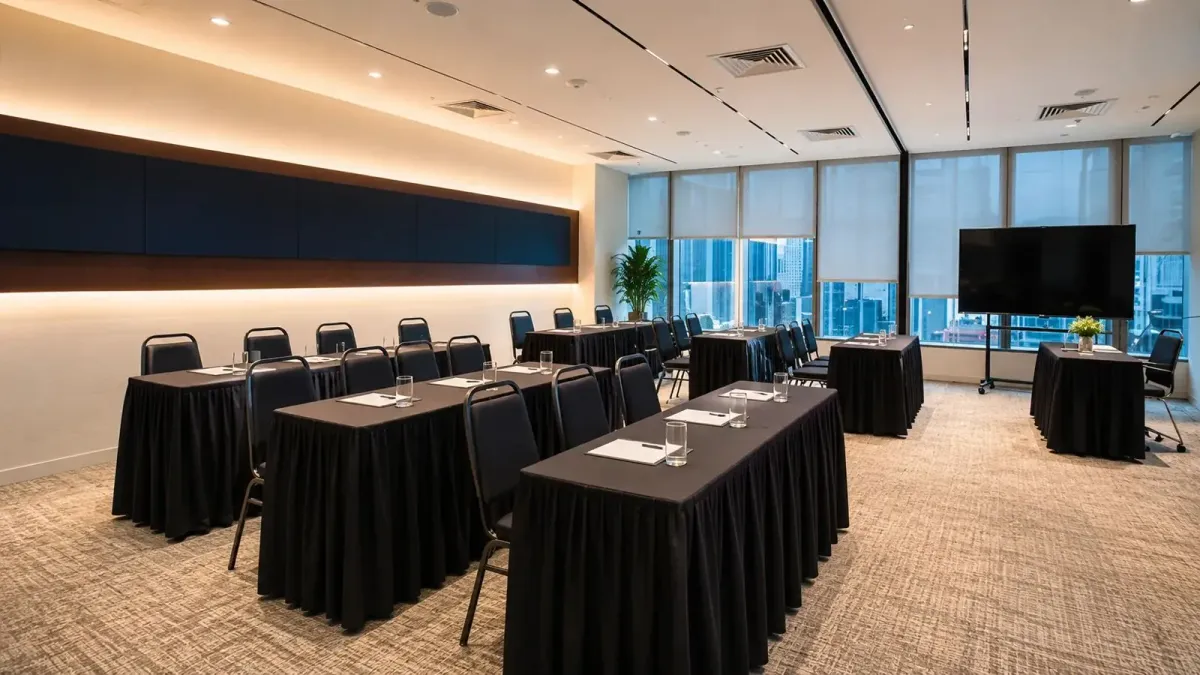
Seminar equipment checklist: what to prepare and test
Your seminar equipment checklist should cover a readable screen, a presentation laptop with its charger, suitable audio and microphones, a tested clicker, reliable Wi-Fi and backup presentation files. Confirm what the venue supplies, assign responsibility for anything you bring, and rehearse with the equipment connected before guests arrive.
Build a checklist you can sign off
Start with your programme and note what each session needs. A speaker presenting slides has different requirements from a facilitator running online exercises or a moderator taking audience questions.
Use the table below as your working checklist. Add an owner and a status beside each item, and mark it ready only after the relevant test passes.
| Equipment | What to confirm | Test before guests arrive |
|---|---|---|
| Screen or projector | Position, connections and visibility | Read a detailed slide from the back row |
| Presentation laptop | Charger, software and final files | Open the actual deck in slideshow mode |
| Speakers and audio connection | Playback route for videos | Play a clip and listen from audience seats |
| Microphones | Suitable types, availability and batteries | Speak from each planned presentation position |
| Clicker | Receiver, connection and power | Advance slides from where the presenter will stand |
| Wi-Fi | Guest access and online activities | Open the actual meeting link or exercise |
| Cables and adaptors | Compatibility with the presenter’s laptop | Connect the complete presentation setup |
| Backup equipment and files | Who brings them and where they are kept | Practise switching to the alternative |
Keep this checklist with the programme so the organiser and technician work from the same version. Record unresolved items explicitly, rather than leaving a blank that someone might mistake for confirmation.
Check screen visibility and presentation control
Choose your seating layout before judging whether the screen works for the seminar. Sit in the furthest seats and check a slide containing the smallest text your speaker intends to use, with the room lighting set for the session.
Microsoft recommends checking presentation colours on the projection screen and confirming the display setup before delivery. Use your final deck for this check, particularly where charts or screenshots carry the lesson. Microsoft’s presentation guidance explains these checks.
Connect the presenter’s own laptop during rehearsal and confirm which cable or adaptor is needed. Check that the audience sees the slides while the presenter can access any private notes they need.
Test the clicker with that same laptop, including its receiver or pairing method. Practise advancing and returning to slides from the speaker’s position, and agree who will control the deck if the clicker stops responding.
If you’re still deciding where tables should go, our seminar room seating and technology guide provides useful context. Settle the layout before completing your visibility check.
Test speech, microphones and video sound separately
A working microphone does not confirm that a video will play through the room speakers. Test speech and laptop playback separately, then listen from the audience area while someone presents at a normal speaking volume.
Choose the microphone arrangement around how the seminar will run. Discuss a handheld microphone for questions and a suitable hands-free option if the speaker needs to demonstrate an activity, subject to venue availability.
Confirm the microphone quantity and types directly with the venue. We did not find a published microphone inventory or clicker inclusion on the Maxsmart booking page, so those details need confirmation for your session.
During the sound check, ask the speaker to move through the areas they expect to use. Shure advises keeping microphones close to the intended sound source, maintaining suitable separation from loudspeakers and turning off unused microphones to help control feedback. Shure’s feedback guidance explains why placement matters.
Agree how audience questions will be handled before the doors open. If a microphone will be passed around, give that task to a named organiser and check the handover during rehearsal.
Check Wi-Fi against the actual seminar activities
Write down what needs an internet connection during the programme. Guest browsing, a live demonstration and a remote speaker each need a suitable test, so opening a webpage alone should not complete your network check.
Use the presenting laptop to open the actual services you plan to use. Confirm guest access instructions and complete any sign-in steps before the speaker begins.
For a hybrid seminar, rehearse with someone joining remotely and ask them to check the shared slides and sound. Zoom provides a test meeting procedure for checking connectivity and adjusting audio and video.
Ask whether a wired connection is available for the presenting device if the session depends on online delivery. Zoom includes trying a wired connection among its Wi-Fi troubleshooting steps, although availability must be confirmed with your venue.
For camera placement and the wider room arrangement, our hybrid meeting room setup guide is a useful companion. Include those checks in the rehearsal whenever remote guests are part of your audience.
Prepare backups and rehearse the handover
We recommend keeping a local copy of the final presentation and an accessible PDF version. Keep supporting media available offline where permission allows, and open the backup files before treating them as ready.
Pack the laptop charger and the adaptors confirmed during your connection test. If you arrange a spare laptop, check that it can open the presentation and connect to the display before the session begins.
Agree what happens if an online activity becomes unavailable. A facilitator could switch to a discussion using prepared prompts while the organiser checks the connection, provided that alternative suits the learning objective.
Finish the rehearsal by following the programme through each speaker change. Check who advances the slides, who manages sound and who decides when to use the backup, then keep the required equipment within reach.
How Maxsmart Event Space fits your seminar
Maxsmart Event Space is at Level 13, Corporate Tower 2, Pavilion Damansara Heights, Kuala Lumpur. Nexus Executive Boardroom accommodates up to 18 guests, while Synergy Suite accommodates up to 72 in theatre seating or 36 in classroom seating.
Nexus has a 98-inch interactive display and costs RM300 hourly, RM1,200 for a half day or RM1,800 for a full day. Synergy Suite has an LED wall with supporting displays, a smart lectern and professional PA, at RM600 hourly, RM2,300 for a half day or RM3,600 for a full day.
Both include screens, 1Gbps Wi-Fi and an on-site tech assistant. Prices include SST, with a minimum booking of two hours; confirm microphone and clicker arrangements for your programme.
The advertised FIRST50 offer gives eligible companies 50% off their first room booking when booked by 30/11/2026 for a meeting by 31/12/2026. Weekend and public holiday fees remain payable at the usual rate. Current room details and offer terms.
Frequently asked questions
What equipment do you need for a seminar?
Prepare a screen or projector, a presentation laptop and charger, suitable audio, microphones where needed, and a tested clicker. Include the required cables and adaptors, internet access for online activities, and backup presentation files.
How do you check whether a seminar screen is large enough?
Open the final presentation and check its most detailed slide from the furthest audience seats. Use the planned room lighting and seating layout, then adjust the content or arrangement if essential text is difficult to read.
Do you need a microphone for a small seminar?
Check whether guests can hear normal speech clearly from the furthest seats during rehearsal. Consider audience questions and any recording or remote participation requirements when agreeing the microphone arrangement.
What should you do if the seminar Wi-Fi stops working?
Use your prepared offline presentation and switch online activities to an agreed alternative where practical. For remote participation, have the organiser check the connection and use a tested alternative connection if one has been arranged.
What backup equipment should a seminar presenter bring?
Bring the laptop charger, confirmed connection adaptors and accessible copies of the final presentation, including a PDF. If you arrange a spare laptop or clicker, test it with the room equipment before the seminar.
With your checklist ready, check availability and book at maxsmart.com.my. Include preparation and equipment testing when choosing your booking period.